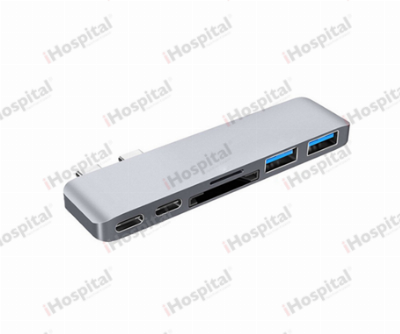
Onten OTN-9175K USB-C to Dual HDMI Adapter – 4K@60Hz, USB 3.0, PD 100W
Hub, adapter or cable USB-C Hubs & Docking Stations Brand New – 5 Years Warranty SKU OTN-9175K
Sealed and unused, straight from the maker, with a 5-year warranty.
$38.00
per pcs
In stock
- 5 Years WarrantyCovered from the day you buy
- Reserve onlinePay when you collect — no card needed
- Delivery across LebanonOr collect from our counter
Overview
OTN-9175K is a 4-in-1 USB-C to Dual HDMI adapter from Onten, primarily designed to extend or mirror your laptop's display to two monitors while providing power and peripheral connectivity
- Single HDMI: Up to 4K @ 60Hz.
- Dual HDMI: Up to 4K @ 30Hz when both are used.
USB-C to Dual HDMI Display Adapter
ONTEN USB-C MST Hub to 2x HDMI allows you to connect two displays to USB-C or Thunderbolt 3 enabled laptop, Ultrabook, or PC. Configure these added monitors anyway you want. Transfer high-quality video and audio for presentations, conferences, workshops, training or gaming.
- Model:OTN-9175B
- Size:58*56*11mm /2.2*2*0.43 inch
- Cable lentch: 106mm
The Dual HDMI USB C Adapter ONLY work with those devices that the USB Type C Port supports video output or DP Alt Mode.Not for all USB C laptop.
Before you purchase it, Please Attetion:
- 1.Please check if your laptop owns a USB Type-c Thunderbolt 3 port and support DisplayPort Alternate Mode.
- 2.On Mac devices, ONLY support Mirror Mode, CAN NOT extend two different Screen, due to Mac OS limitation.
FAQ
How to switch Mac device to Extend Mode?
"Setting" → "Display" → click the "mirror display" box to switch to Extend mode → then you can drag a window of website/movie to the rightest side of your desktop screen until it disappear on your desktop screen and show up on the external monitor screen.
( Important Note: As Apple company itself limited, for Mac OS devices use in extend mode, the image on the two external screens will be the same.)
How to connect Extend Mode for Windows OS?
Right-click desktop→ select Intel display Settings → pop-up Settings screen select display→ select multi-screen display→ expand the desktop
(If the display 3 does not display, please manually select the display→click "apply" "confirm" can set OK).
If one of displays does not display, How to do?
Right click desktop > Graphics Settings > Select One or More Active Displays.
- Mac OS ONLY Support Mirror Mode:A-A/A;A-B/B
- Support Windows OS: Mirror Mode:A-A/A;Extend Mode: A-B/B;A-B/C
- Support Android OS:Mirror Mode:A-A/A
Important Note:
- Does not support 2 external displays show different images for APPLE computers in extend mode.
- For different modes if you are not clear how to setting, we can help you.
Dual Video Resolution Configurations
- 1 display 3840x2160@60Hz
- 2 displays 3840x2160@30Hz
- 2 displays 2560x1440@60Hz
- 2 displays 1920x1080@60Hz
Complete your setup
Picked to go with it. Each item keeps its own price.
Not sure it's the right one?
Tell us what you'll use it with and we'll tell you straight whether it suits — and what else you might need.
Or send a message
Ask about compatibility, stock or a quote for several units. We reply within working hours.
You may also need
All usb-c hubs & docking stations